You can now save different display settings for each Supplement Facts and Nutrition Facts layout. This is useful if you regularly use particular fonts or font sizes and don’t want to adjust them each time you create a panel.
The app allows you to save different display settings for each Supplement Facts and Nutrition Facts layout.
The system defaults will usually provide the best starting layout, so you do not need to change these settings unless you want to customize the appearance of your panels.
Access Your Layout Defaults
From the main label screen, select the layout you want to customize and click Edit next to the “Apply fonts…” selector.

This opens the User Defaults editor for the selected label type and layout. In this case for the Multiple Servings layout of Supplement Facts.
You can also select other Supplement Facts or Nutrition Facts layouts from within the User Defaults editor to review or change their settings. Save any changes you make, then go back and apply them to your label. Settings are NOT applied retroactively to labels you already created and saved.
The Apply Fonts dropdown allows you to keep existing displayed fonts, or toggle between your font preferences or system default fonts. For new panels, user defaults are loaded if specified, otherwise the system fonts are used.
When you create a new panel, the app uses your saved font preferences for the selected layout, if you have specified them. If you have not saved preferences for that layout, the system defaults or your current settings are used.
The Apply Fonts dropdown on the main label screen lets you change the fonts used by the panel currently displayed. You can:
- Keep the fonts that are currently displayed (manual changes made in the image editor)
- Apply your saved font preferences (if any)
- Apply system default fonts
This lets you experiment with different font settings without changing the preferences you have saved for future panels.
The system defaults will usually provide the best starting layout. Custom font settings are available when you need to adjust the panel for a particular application.
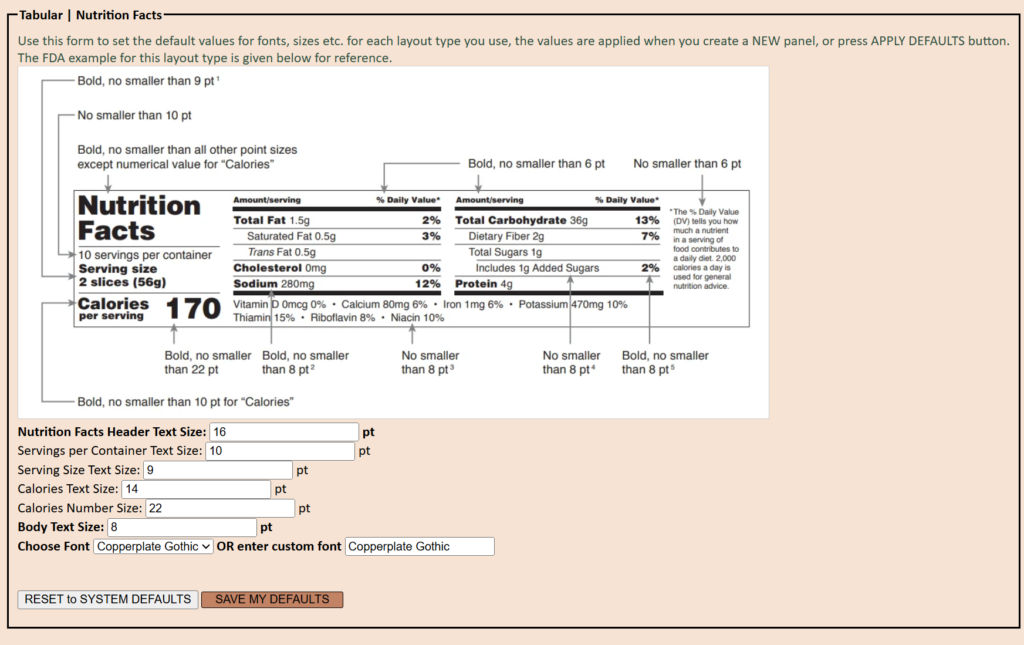
Choose a Font
Select a font from the font dropdown, or enter a custom font name.
Remember that a font must be available on the computer or system displaying or printing the panel in order to display as intended.
Set Font Sizes
Depending on the selected layout, you can set sizes for:
- Header text
- Column headings and footnotes
- Body text
Enter the desired size in points (pt).
An FDA example panel is displayed for reference, with measurements where available.
Other Layout Settings
Some layouts have additional settings, such as Serving Type for Supplement Facts. Available settings depend on the label type and layout selected.
Save Your Defaults
Select Save My Defaults to save the settings for that layout.
Your saved settings will then be applied when you use that layout.
Restore the System Defaults
Select Reset to System Defaults to return the selected layout to the default settings.
Resetting one layout does not change the preferences you have saved for other layouts.